Fixing a regional-settings error in AgreeStat360
If AgreeStat360 for Excel is behaving unexpectedly, the most common cause is a non-U.S. Windows regional format — particularly one that uses a comma as the decimal separator. Switching your regional format to English (United States) resolves it.
Open Windows Settings
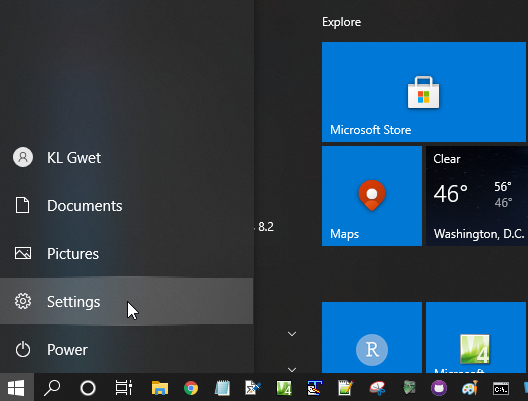
Click the Windows Start button, then open Settings.
Go to Time & Language
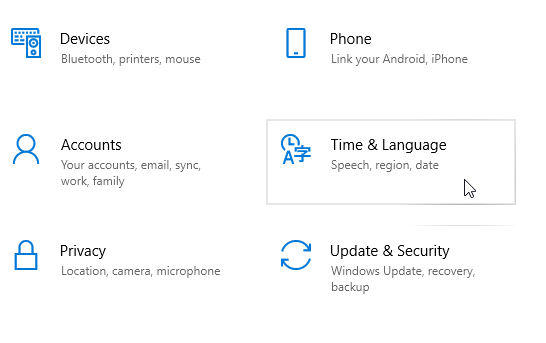
From the Settings window, select Time & Language.
Open Region
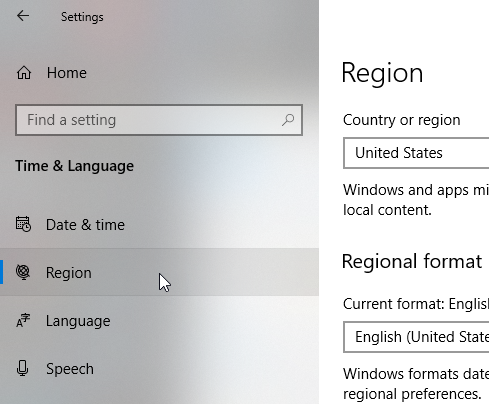
Under Time & Language, select Region.
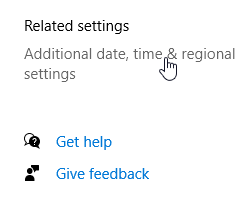
Open additional date, time & regional settings
On the Region page, find Related settings in the top-right area and select Additional date, time, & regional settings.
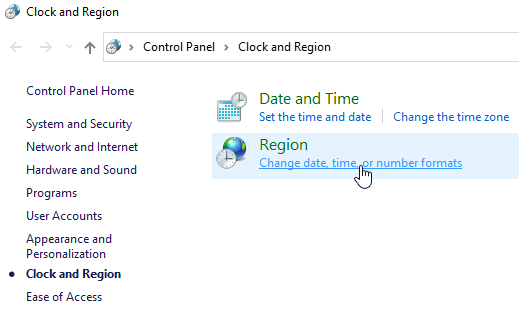
Change date, time, or number formats
Under Region, select Change date, time, or number formats.
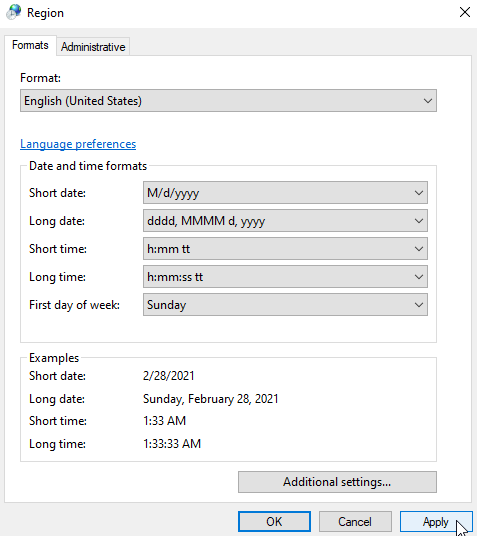
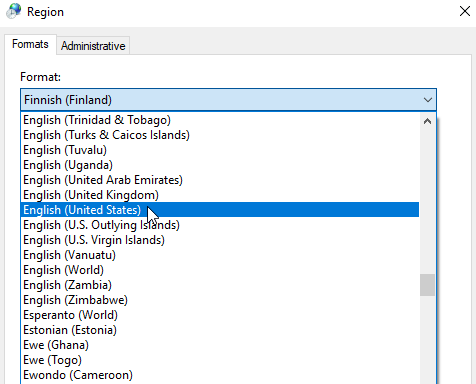
Select English (United States)
In the format dropdown, choose English (United States) — this restores the decimal and thousands separators AgreeStat360 expects.
Apply the change
Click Apply, then relaunch Excel. AgreeStat360 should now function normally.